

If you're Not Going to Delete Google Maps, Do This Instead.
The settings that reduce your exposure, what they actually do, and the one most people leave on by accident.
Google Maps is the hardest Google product to get rid of.
Search has alternatives. Gmail has alternatives. Chrome has alternatives that are genuinely better, both overall and from a privacy POV.
But Maps?
The gap between Google Maps and every privacy and semiprivacy-friendly alternative (Organic Maps, OsmAnd, even Apple Maps) is real enough that I understand why people stay. The coverage, the business data, the real-time traffic, and the accuracy in dense urban areas is unmatched. For most people in most places, the alternatives aren’t there yet.
So this post isn’t about quitting Google Maps. It’s about what you should change if you’re going to keep using it, and what the settings actually do versus what Google implies they do. Those are often different things.
One note before we get into it:
these settings reduce your exposure, they don’t eliminate it.
Google Maps is, structurally, a data collection product that also gives you directions. If you want to understand the full picture of what that means across Google’s ecosystem, and what it takes to actually step off it, that’s what my De-Google Your Life guide covers.
But that’s a much larger project. This post is narrower, covering just Maps and the key changes you can make.
What Google Maps Actually Collects
There are three data categories worth understanding before touching any settings.
The first is Timeline, the record of where you’ve physically been. When enabled, Maps logs your routes, the places you stopped, how long you stayed, and infers what you were doing (driving, walking, visiting a restaurant).
After a major policy change Google rolled out through 2024, this data now lives on your device by default rather than Google’s servers. That’s an important shift because it largely closed off the geofence warrant problem (where law enforcement could demand location data on everyone near a crime scene by serving Google directly).
The new exposure risk is your device itself. A 2025 Pennsylvania case, for example, used Google Maps Timeline data extracted from a phone to place a defendant at a location, without requiring expert testimony to explain the technology.
The second is search and navigation history, which logs every address you’ve searched and every route you’ve run. This is stored separately from Timeline and controlled by a separate setting. Most people who turn off Timeline assume this type of data is covered. It isn’t.
The third is passive background data. When Google Maps has “Always” location permission, it collects location signals even when you’re not actively using it. This feeds both Timeline and, through Web & App Activity, Google’s broader profile of your movements.

What the 2024 Changes Actually Mean
In late 2023, Google announced that Timeline data would move from its servers to users’ devices, and cut the default auto-delete period from 18 months to 3 months. The company framed this as a privacy improvement, and in one specific sense it was.
Google can no longer hand your location history to law enforcement via a server-side warrant because Google no longer has it.
Google still requires a warrant, not merely a subpoena, to produce location data it does hold. Your device is now the single point of failure. If your phone is seized, imaged, or accessed, Timeline data sits on it. Cloud backup of Timeline is available but opt-in, and Google says it encrypts it in a way that blocks their own access. Treat that as probable but not verified.
None of this affects what Google collects in real time while you’re actively navigating. That still happens, and it still feeds the ad and personalization infrastructure.
The Settings That Actually Matter
Work through these in order. The first two have the most impact.
1. Location Permission - Limit When, Not How Precisely
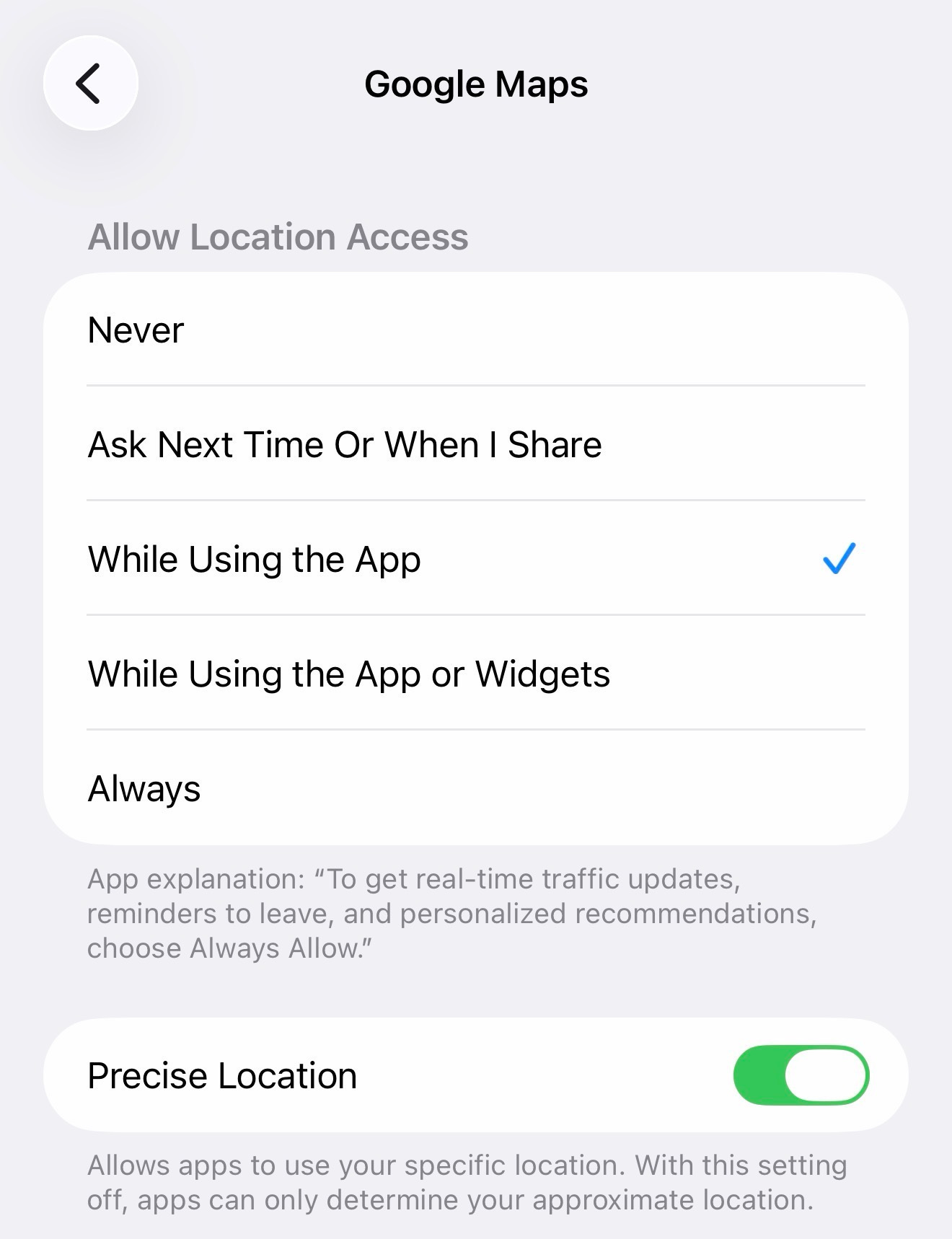
Most guides get it wrong with this setting. The advice you’ll see on privacy forums is to switch Google Maps from precise location to approximate location. Don’t do that. Google Maps has required precise location for navigation since mid-2023, and approximate location breaks routing. The change that actually matters is when Maps can access your location, not how precisely.
On iOS, go to Settings > Privacy & Security > Location Services > Google Maps and set it to “While Using the App.” Leave Precise Location on.
On Android, go to Settings > Location > App permissions > Google Maps and set it to “Allow only while using the app,” not “Allow all the time.”
Setting it this way stops Maps from collecting location signals in the background when you’re not actively using it. That’s where a meaningful share of passive data collection happens.
2. Timeline - Check Whether It’s On, Then Decide
Google’s documentation now says Timeline is off by default. If you’ve had a Google account for more than a few years and enabled it at any point, it’s likely still on. Check rather than assume.
On both platforms, open the app and tap your profile picture, then go to Your Timeline > the three-dot menu (top right) > Location & privacy settings. From here you can turn it off entirely, or set auto-delete to 3 months if you want to keep the feature.
You can also manage it at the account level at myaccount.google.com > Data & Privacy > Timeline.
If you turn it off and want to delete what’s already stored, the same settings screen has a “Delete all Timeline data” option. Do that separately. Turning off the setting doesn’t delete existing data.


3. Web & App Activity - the One Most People Miss
This is the setting that undermines everything else if you leave it on. When Web & App Activity is enabled, your Maps searches, navigation history, and location context from Maps use get saved to your Google account regardless of your Timeline setting. They’re independent. Turning off Timeline while leaving Web & App Activity on is like locking your front door and leaving the back open.
On both platforms, go to myaccount.google.com > Data & Privacy > Web & App Activity. Turn it off, or at minimum set auto-delete to 3 months.
Google will warn you that some Maps features will be “less personalized.” That’s accurate. It also describes what personalization means in practice, Google using your activity history to inform what it shows you, and by extension, what it shows advertisers about you.


4. Maps Search History
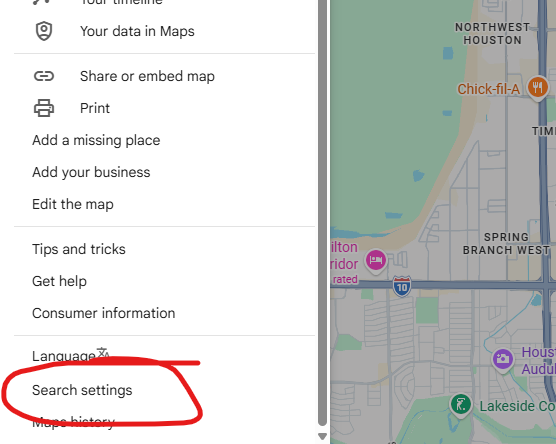
Separate from Web & App Activity, Maps maintains its own search history log. On both platforms, tap your profile picture, then go to Your data in Maps > Maps search history. You can delete history there and set auto-delete.
5. Incognito Mode - For Specific Trips
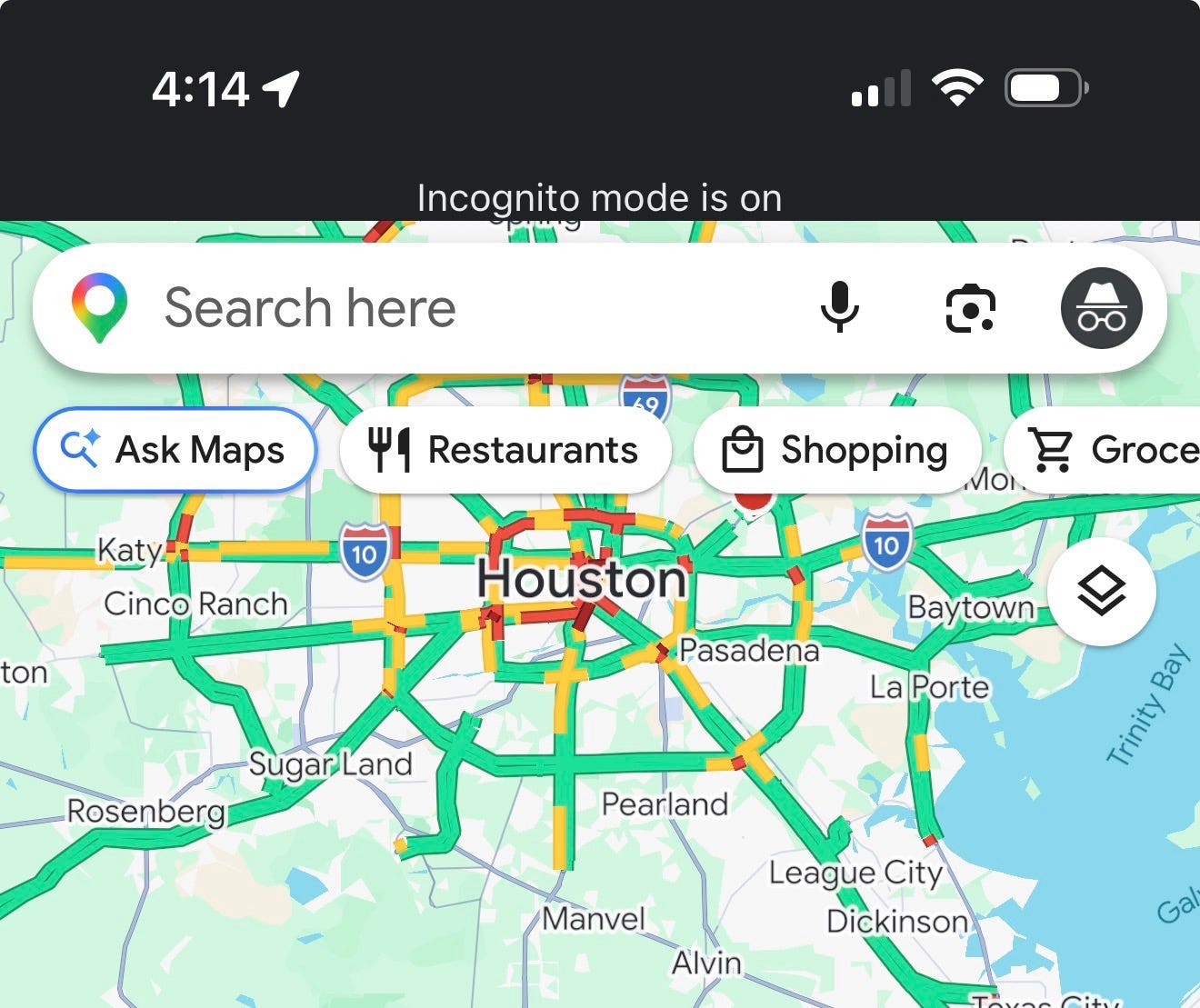
Google Maps has an incognito mode that stops search history from saving and pauses Timeline updates while active. It’s underused.
On both platforms, tap your profile picture and select “Turn on Incognito Mode.”
Use it for medical appointments, addresses you’d rather not have in your history, anything you’d prefer not to see surface later in Google’s “places you’ve visited” features. Incognito mode doesn’t stop real-time location sharing if you have that enabled with specific contacts, and it doesn’t make you invisible to your carrier or network.
6. Use Maps Without a Google Account
This one doesn’t get mentioned enough.
Google Maps works on both iOS and Android without signing in. Navigation, search, and real-time traffic all still function. What you lose is Timeline, saved places, and anything that depends on account history.
Now Google still collects data from unauthenticated sessions, it just can’t attach it to your account identity. It gets tied to your device identifier and IP address instead. That’s a genuine reduction in exposure, but not a complete one.
If you use Maps occasionally and don’t rely on saved places or commute features, signing out permanently is the highest-impact change on this list. Everything in steps 1 through 5 is about limiting what Google collects and retains under your identity. Removing the identity from the equation is a different approach entirely.
To sign out on either platform, tap your profile picture and select “Sign out.” Maps will continue working.
A Note on Desktop
Maps on a browser uses your browser’s location permission rather than app-level controls, and it doesn’t collect background location data or update your Timeline the way the mobile app does. The settings above are mobile-focused because that’s where the exposure is.
The Honest Bottom Line
After working through all of this, Google Maps is still Google Maps.
If you implement the above setting changes, you’ve reduced the data surface because background collection is off, Timeline isn’t building a permanent record of your movements, your search history isn’t feeding the personalization engine. That’s positive, and it’s worth doing.
What you haven’t done is stopped Google from knowing where you are while you’re actively navigating. That’s the core function of the app, and there’s no privacy setting that separates the navigation from the data collection. They’re the same operation.
If that’s the line you want to be on the right side of, the answer is a different app. For what it’s worth, Organic Maps has improved significantly and covers most use cases for people who live in major metro areas. OsmAnd is more powerful but has a steeper learning curve.
Apple Maps is adding ads, so the “at least it’s ad-free” argument is expiring. Apple says the ads will be contextually targeted based on your current search, not your location history, and that your data stays on-device. That’s a different model from Google’s if true. But it’s Apple’s claim, which will need to be verified
The De-Google Your Life guide covers this in full: Maps, Search, Chrome, Android, and the account-level changes that matter most. If you’re already making settings changes, it’s the logical next step (FYI, the guide is free for paid annual subscribers).
How long did all these setting changes take you? If you found something you’d left on that surprised you, share this with someone who probably has the same settings.
Looking for help with a privacy issue or privacy concern? Chances are we’ve covered it already or will soon. Follow us on X and LinkedIn for updates on this topic and other internet privacy related topics.
Disclaimer: None of the above is to be deemed legal advice of any kind. These are *opinions* written by a privacy and tech attorney with years of working for, with and against Big Tech and Big Data. And this post is for informational purposes only and is not intended for use in furtherance of any unlawful activity. This post may also contain affiliate links, which means that at no additional cost to you, we earn a commission if you click through and make a purchase.
Know your doxxing risk. DoxxScore gives you a personalized exposure assessment and action plan in under 5 minutes. Get Your Risk Score →
Check out our new, free username generator to help you create unique usernames for different accounts. Reusing usernames is convenient, but terrible for your privacy. This tool makes it easy to create unique usernames on the fly.
Helpful Links:
Or just make a friend and ask someone for directions.
I never understood why people use Google products at all. Yes I have maps, yet I don’t have a Google account. And I never use it live either and I rarely use it.