


LinkedIn is one of the most privacy-hostile platforms most professionals use without thinking twice about it.
Not because it’s obscure or poorly understood, but because the whole point of LinkedIn is to be findable.
Your name, employer, job title, location, and career history are all there by design. That visibility is the value proposition.
The problem is that LinkedIn exposes significantly more than most people realize, and the defaults are set in favor of maximum visibility, not maximum privacy. What you share publicly on LinkedIn can be combined with data from other sources to build a surprisingly detailed profile of you. This is then useful to scammers, recruiters you didn’t invite, data brokers, and anyone else with an interest in targeting professionals.
This guide covers what LinkedIn actually exposes, why it matters, and the specific settings worth changing, all without telling you to delete your account or disappear from your industry.
What LinkedIn Actually Reveals About You
Most LinkedIn users are aware they have a public profile. Fewer realize exactly how that profile data gets used.
Here’s a real-world example of how a bad actor can chain your LinkedIn data into something much more specific:
They find your name, current employer, city, and graduation year on your LinkedIn profile
They take those data points to a people-search site like WhitePages or FastPeopleSearch
Even if you have a common name, the employer and city narrow it down quickly
Within minutes they have your current address, phone number, email address, and names of family members
This isn’t theoretical. It’s a straightforward lookup that requires no technical skill. LinkedIn provides just enough verified, professional context to make the rest of the search trivially easy.

The information that creates the most risk:
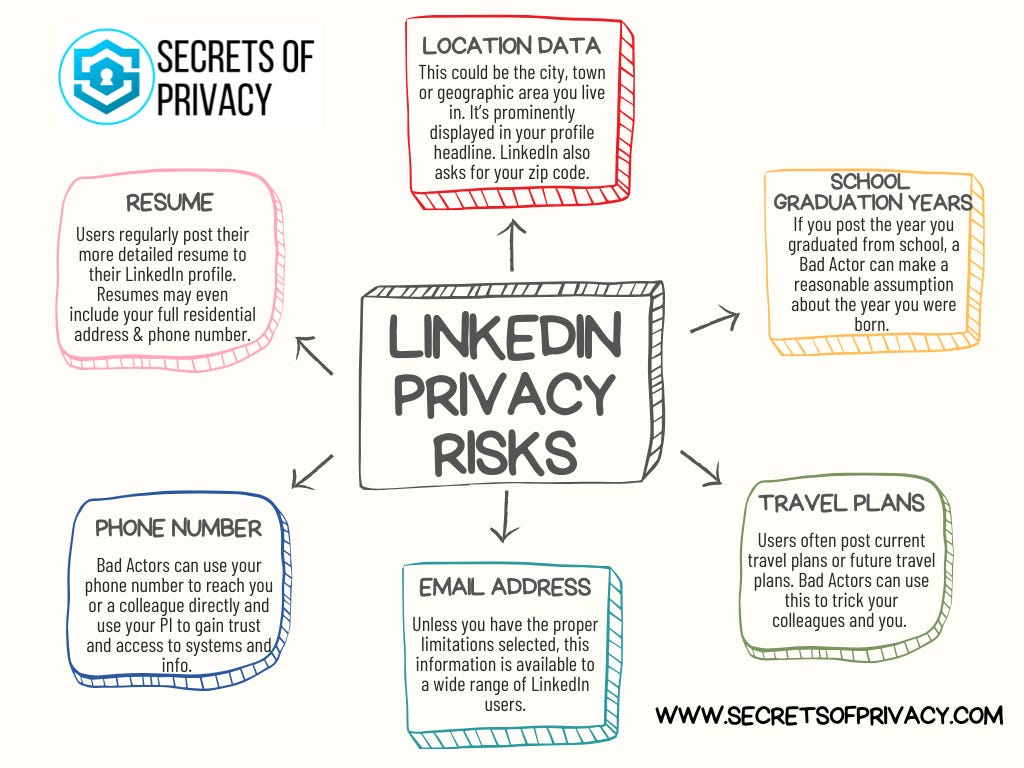
Location data. Your city or region is prominently displayed in your profile headline. LinkedIn also asks for your zip code, which is stored even if not displayed. Specificity matters. “Arlington, VA” is more useful to a bad actor than “Washington, D.C. area.”
Graduation years. If you list the year you graduated, anyone can make a reasonable estimate of your birth year. Ballpark is good enough for most fraud and identity verification schemes.
Contact information. Phone numbers and personal email addresses entered in LinkedIn’s “Contact Info” section are visible to a much wider audience than most people intend. The default setting is broader than you’d expect.
Employment history detail. A complete employment history is a useful signal for spearphishing. Knowing where you worked in 2018 makes an email impersonating a former colleague significantly more convincing.
Travel and event posts. Users regularly post about upcoming conferences, travel plans, and professional events. This information tells a bad actor when you’ll be away from home and what events you’ll be attending.
The BrowserGate Context
If you needed a reminder that LinkedIn treats your data as a resource rather than a responsibility, BrowserGate provided one in April 2026.
Researchers discovered that every time you open LinkedIn in a Chrome-based browser, a hidden script silently scans for over 6,000 browser extensions installed on your device. The results, which can reveal religious beliefs, political views, health conditions, and whether you’re quietly job hunting, are transmitted back to LinkedIn’s servers. None of this is disclosed in LinkedIn’s privacy policy.
LinkedIn calls it a security measure. The practical effect is that LinkedIn can infer sensitive personal attributes about you that you never chose to share. They can then link them directly to your real name, employer, and job title.
This is the context in which you’re managing your LinkedIn privacy settings. The platform is not neutral.

The Settings Worth Changing
Log into LinkedIn, go to Settings & Privacy, and work through the following sections.
Visibility settings
Profile visibility off LinkedIn LinkedIn syndicates your profile data to search engines by default. When someone Googles your name, your LinkedIn headline, employer, and location often appear in the results. If you want to limit this, go to Settings → Visibility → Profile visibility off LinkedIn and turn it off. Your profile will still be findable on LinkedIn itself but won’t index in Google.
Who can see your connections By default, your connection list is visible to your connections. This means anyone who connects with you can browse your professional network. That’s useful for recruiters and for bad actors mapping organizational structures. Change this to “Only you” under Settings → Visibility → Who can see your connections.
Profile photo visibility Your profile photo is visible to everyone by default, including people logged out of LinkedIn. This is useful for legitimate networking but it also means your photo is available to anyone building a profile of you. Consider limiting it to connections only if you’re particularly concerned.
Active status The green dot that shows when you’re online is visible to your connections and, depending on settings, to everyone. It reveals when you’re actively using the platform. Turn it off under Settings → Visibility → Manage active status.
Contact and personal information
Phone number and email address Go to Settings → Sign in & security to see what contact information is on your account, then check Settings → Visibility → Who can see or download your email address. The default is often more permissive than you’d choose deliberately. Set this to “Only you” unless you have a specific reason to share it.
Birthday If you’ve added your birthday, be aware that even partial birth date information is useful for identity verification schemes. Remove it or set it to visible to no one.
Zip code LinkedIn asks for your zip code during setup and stores it even when it’s not displayed on your profile. This contributes to the data profile LinkedIn holds about you and can be used in targeted advertising. You can’t remove it entirely but you can use a zip code for your broader region rather than your specific neighborhood.
Data privacy settings
Data for advertising Under Settings → Data privacy → Data for advertising, LinkedIn lets advertisers target you based on data collected about you on and off the platform. You can opt out of using data from third-party sources for ad targeting here. This won’t eliminate ads but it reduces the data pipeline.
Profile data for training generative AI In September 2025, LinkedIn announced it would use member data to train its AI models. The opt-out is under Settings → Data privacy → Data for Generative AI Improvement. This is one to turn off immediately if you haven’t already.
Salary information If you’ve entered salary data in LinkedIn’s salary insights tool, that information is stored and can inform how LinkedIn categorizes and targets you. Remove it under Settings → Data privacy.
Communication settings
InMail and connection requests You can limit who can send you connection requests to “People who know your email address or appear in your Imported Contacts list” under Settings → Communications. This significantly reduces cold outreach from people building fake connection networks.
Notifications to your network LinkedIn notifies your connections when you update your profile, change jobs, or add new skills. If you’re making quiet updates — or looking for a new job while employed — turn off these notifications under Settings → Visibility → Notify your network.
What to Minimize on Your Profile Itself
Beyond settings, the information you choose to display is within your control.
Use a metro area, not a specific city. “San Francisco Bay Area” instead of “Palo Alto.” The broader the location, the less useful it is for targeted searches.
Drop graduation years. List your degree and institution without the year. No functional cost to professional networking, meaningful reduction in the ease of estimating your age.
Don’t list a personal phone number or email. If you need to be reachable, use a professional email address rather than a personal one. Better still, use an email alias that you control and can delete if it gets harvested.
Keep your resume off LinkedIn. If you’ve uploaded a detailed resume, including home address, personal phone number, or other specifics, remove it. LinkedIn profiles are already detailed enough for networking purposes.
Be deliberate about event and travel posts. Posts about upcoming conferences, travel plans, or specific locations are useful context for anyone trying to reach you at the wrong time.
The Browser Question
Given BrowserGate, the browser you use on LinkedIn matters.
LinkedIn’s scanning script checks for Chrome’s extension architecture before it fires. If you’re using Firefox, the scan doesn’t run at all. Brave blocks the tracking endpoints where collected data gets transmitted, so even though the script targets Chromium browsers, the data doesn’t leave your device.
The practical recommendation: use Firefox or Brave when accessing LinkedIn. Chrome leaves you fully exposed to extension scanning and the device fingerprinting that accompanies it.
The Bottom Line
LinkedIn is a professional necessity for most people. The goal isn’t to disappear — it’s to be findable for the right reasons while making it harder for the wrong ones.
The combination of tighter settings, leaner profile data, and a non-Chrome browser meaningfully reduces your exposure without costing you anything in professional visibility.
If you want a full audit of your LinkedIn settings alongside a broader review of your online exposure (data brokers, Google footprint, email privacy, and more) the Secrets of Privacy Library covers all of it in one place, designed to be worked through in the right order.

Also, dates and times of professional events and our social circles.