

Smart TV Privacy Settings 2026: How to Disable Tracking on Every Brand
Step-by-step guide to turn off ACR, limit ad tracking, and stop your TV from spying on you
Quick answer: Go to your TV's privacy or settings menu and disable ACR (Automatic Content Recognition), limit ad tracking, and turn off voice assistants. The exact menu location varies by brand. We cover Samsung, LG, Sony, Vizio, Hisense, TCL, Roku, Fire TV, Apple TV, and Android TV below.
Your smart TV is watching you watch it.
From the moment you turn it on, modern TVs can log what you watch, when you watch it, and even scan your Wi-Fi network to see what other devices you own. That data gets packaged and sold to advertisers and data brokers, who use it to build a profile that follows you across every screen you own.
In 2024, advertisers spent an estimated $30 billion on connected TV advertising. That money exists because of your data.
The good news: you can fight back. This guide covers everything you need to know to make your smart TV less creepy, from basic settings changes to advanced network defenses to streaming device privacy.
Table of Contents
Streaming Device Privacy Settings (Roku, Fire TV, Apple TV, Android TV)
What Data Your Smart TV Collects
When you set up a smart TV, you’re agreeing to let it capture and share a surprising amount of personal data:
Viewing history — Every show, movie, or ad you watch, often down to the second.
Screenshots of content — ACR technology captures images of what’s on screen to match against a database.
Device identifiers — Your TV’s unique ID, MAC address, and serial number.
Network data — Your IP address and details about your home Wi-Fi environment.
Location data — Approximated from your IP or the ZIP code you entered during setup.
Personal information — Names, email addresses, and sometimes phone numbers tied to your account.
Voice recordings — If voice assistants are enabled, snippets of conversations captured by the microphone.
App usage — Which apps you open, how often, and what you do inside them.
This data doesn’t stay with the TV manufacturer. It’s shared with advertisers, analytics firms, and data brokers, where it gets linked to your broader digital footprint.
And the age of extreme AI, starving the data brokers of your data is critically important to protecting your privacy and physical security. It’s one of the reasons we regularly recommend getting a data broker removal service to automatically remove your data from these terrible sites. We’ve used DeleteMe for the past five years or so and can’t recommend it enough. Learn more here.
The Biggest Privacy Risks
Automatic Content Recognition (ACR)
ACR is the core tracking technology in smart TVs. It captures tiny samples of what’s on your screen, such as still images or audio snippets, and compares them against a massive database. Once there’s a match, your viewing history gets logged and linked to your household.
This works regardless of the source: Netflix, cable, DVD, gaming console. If it’s on screen, ACR can identify it.
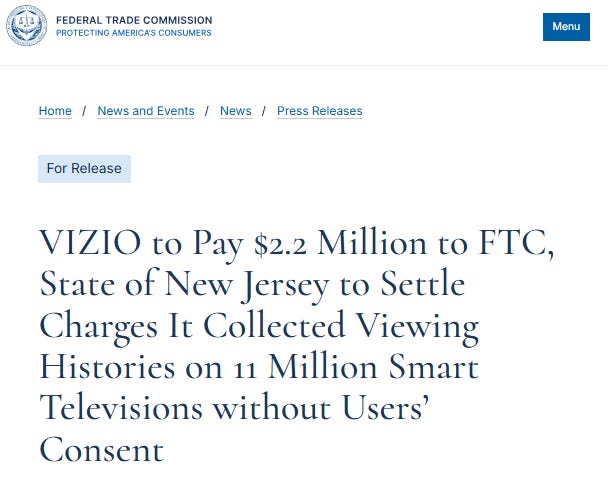
Real-world example: In 2017, Vizio paid $2.2 million to settle FTC charges after secretly collecting and selling viewing histories from 11 million TVs without consent.
Voice Assistants and Microphones
Many TVs ship with Alexa, Google Assistant, or Bixby built in. That means microphones are always listening for wake words, and sometimes capture background conversations. Those recordings often leave your home for cloud processing.
If you don’t actively use voice commands, make sure the feature is fully disabled. Some TVs enable it during setup without making it obvious.
Cameras
Certain models include cameras for gesture control or video calls. If left unsecured, a living room camera poses obvious risks. Cover it with tape if you can’t disable it in settings.
Settings That Reset After Updates
After firmware updates, your privacy choices may revert to defaults. Data collection silently switches back on. Set a reminder to check your settings periodically.
How to Disable Tracking by TV Brand
Every manufacturer buries privacy options in different menus. Here’s where to find them:
Samsung
Disable ACR: Settings → Privacy Choices → Viewing Information Services → Turn OFF
Limit Ad Tracking: Settings → Privacy Choices → Advertising → Limit Ad Tracking → Turn ON
Disable Voice Assistant: Settings → General → Voice → Voice Assistant → Turn OFF
LG
Disable ACR (Live Plus): Settings → General → System → Additional Settings → Live Plus → Turn OFF
Limit Ad Tracking: Settings → General → System → Additional Settings → Advertising → Limit Ad Tracking → Turn ON
Disable Voice Assistant: Settings → General → AI Service → Voice Recognition → Turn OFF
Sony
Disable ACR (Samba Interactive TV): Settings → Initial Setup → Samba Interactive TV → Disable
Limit Ad Tracking: Settings → Device Preferences → About → Ads → Reset advertising ID and limit personalization
Vizio
Disable ACR (Viewing Data): Settings → System → Reset & Admin → Viewing Data → Turn OFF
Limit Ad Tracking: Settings → System → Reset & Admin → Advertising → Limit Ad Tracking → Turn ON
Hisense
Disable ACR: Settings → System → Privacy → Viewing Information Services → Turn OFF
Limit Ad Tracking: Settings → System → Privacy → Advertising → Limit Ad Tracking → Turn ON
TCL (Roku TV)
Disable ACR: Settings → Privacy → Smart TV Experience → Use Info from TV Inputs → Turn OFF
Limit Ad Tracking: Settings → Privacy → Advertising → Limit Ad Tracking → Turn ON
Reset Advertising Identifier: Settings → Privacy → Advertising → Reset Advertising Identifier
Streaming Device Privacy Settings
If you use a streaming stick or box, you’re trading one set of tracking for another. Here’s how to lock down the major platforms:
Roku
Roku makes most of its money from advertising, so tracking is aggressive by default.
Limit Ad Tracking: Settings → Privacy → Advertising → Limit Ad Tracking → Turn ON
Reset Advertising Identifier: Settings → Privacy → Advertising → Reset Advertising Identifier
Disable ACR on Roku TVs: Settings → Privacy → Smart TV Experience → Use Info from TV Inputs → Turn OFF
Note: You’ll still see ads, but they won’t be as targeted. Roku continues collecting some aggregate data.
Amazon Fire TV
Amazon ties Fire TV data into its larger advertising and shopping ecosystem. What you watch may influence Amazon ads, search results, and Alexa suggestions.
Turn Off Device Usage Data: Settings → Preferences → Privacy Settings → Device Usage Data → Turn OFF
Turn Off App Usage Data: Settings → Preferences → Privacy Settings → Collect App Usage Data → Turn OFF
Disable Interest-Based Ads: Settings → Preferences → Privacy Settings → Interest-based Ads → Turn OFF
Apple TV
Apple’s business model is less dependent on ads, making Apple TV a stronger privacy option. Tracking still happens, but it’s far more limited.
Limit Ad Tracking: Settings → General → Privacy → Apple Advertising → Personalized Ads → Turn OFF
Reset Advertising Identifier: Settings → General → Privacy → Apple Advertising → Reset Advertising Identifier
Turn Off Analytics Sharing: Settings → General → Privacy → Analytics & Improvements → Share Apple TV Analytics → Turn OFF
Google Chromecast / Android TV (including NVIDIA Shield)
Chromecast and Android TV lean heavily on Google’s ad ecosystem. Your streaming behavior can be tied directly to your Google account.
Opt Out of Ads Personalization: Settings → Google → Ads → Opt out of Ads Personalization → Turn ON
Turn Off Usage & Diagnostics: Settings → Device Preferences → Usage & Diagnostics → Turn OFF
Review Activity Controls: Settings → Accounts → Google Account → Activity Controls → Review and disable as desired
Pro tip: Use a separate Google account just for streaming, so it isn’t tied to your main email, calendar, or search history.
Advanced Defenses (Network-Level)
The settings above stop the most obvious tracking. But smart TVs can still gather information through background connections. These advanced tactics give you more control.
Use a DNS Filter (Pi-hole or NextDNS)
One way to stop your TV from phoning home is to block tracking connections before they leave your network. Tools like Pi-hole or NextDNS act as a filter for all devices in your home. When your TV tries to connect to a known tracking server, the request gets blocked.
This doesn’t stop all data collection (especially encrypted traffic inside apps), but it dramatically cuts down on background connections you didn’t authorize.
Caution: Misconfigured DNS can break streaming services. Keep DNS changes at the router or filter level where you can test and revert easily.

Segment Your Network
Your smart TV doesn’t need to be on the same Wi-Fi as your laptop or phone. Keeping them separate boosts both security and privacy.
Why this matters:
Smart TVs often run outdated software with weak security. If compromised, network segmentation stops attackers from reaching your other devices.
Many ad tech systems try to map devices in a household by looking at everything on the same network. Isolation makes it harder for advertisers to tie your viewing habits to your phone browsing or laptop searches.
Some TVs scan your Wi-Fi environment to see what other devices are present. Isolation keeps your personal devices out of that scan.
How to do it:
Use your router’s guest network feature. Connect your TV (and other smart home devices) there.
Look for “IoT isolation” settings that stop devices on that network from seeing each other.
Use a strong, unique password—don’t recycle your main Wi-Fi password.
Use External Devices You Control
One of the simplest ways to reduce smart TV tracking is to avoid using the “smart” features at all. When you use built-in apps, activity flows through the TV’s operating system where ACR and telemetry hooks live.
By connecting an external streaming device or media PC:
The TV only sees an HDMI signal. It doesn’t know which app you’re running or what content you’re watching. This sharply limits what ACR can collect.
The external device controls privacy. You manage settings on the device you trust more.
A media PC (Plex, Jellyfin, Kodi) is the most private setup. The TV becomes a dumb display while your media PC runs everything.
This doesn’t eliminate all tracking (Netflix always knows what you stream inside its app), but it removes one whole layer: the TV manufacturer and its advertising partners.
General Privacy Tactics for Any Setup
These work regardless of which TV or streaming device you use:
Use a disposable email address when setting up accounts. Services like SimpleLogin, Proton, or DuckDuckGo Email Protection let you create aliases that forward to your real inbox. This makes it harder for apps and your TV manufacture to build a profile on you.

Enter a nearby ZIP code during setup. Location-based features still work, but your household profile is less exact. So if your zipcode is 12765 use 12767.
Decline unnecessary permissions. During setup, you’ll be asked to enable “personalization” or “improve services.” These are data collection toggles. Opt out.
Minimize app installs. Every app is another data collector. Stick to the ones you actually use and delete the rest.
Use generic profile names. Instead of “John” or “Sarah,” try “Living Room” or “Profile 1.” Makes it harder to connect viewing habits to specific people.
Consider a VPN. Some devices (like NVIDIA Shield or media PCs) support VPN apps, which hide your IP and location from streaming services.
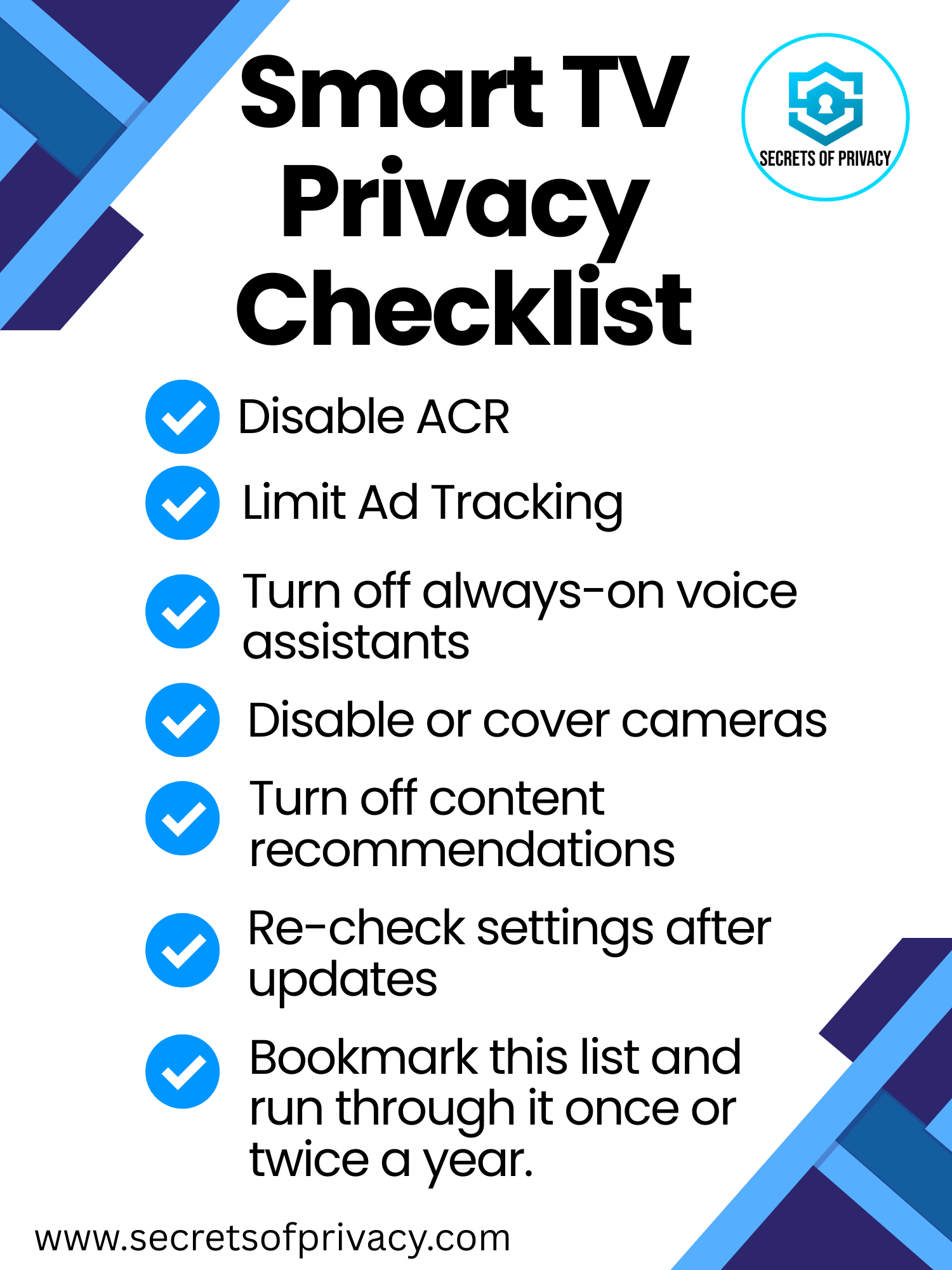
Re-check settings after updates. Firmware updates can reset your privacy choices. Set a calendar reminder to audit periodically.
Which Streaming Device is Best for Privacy?
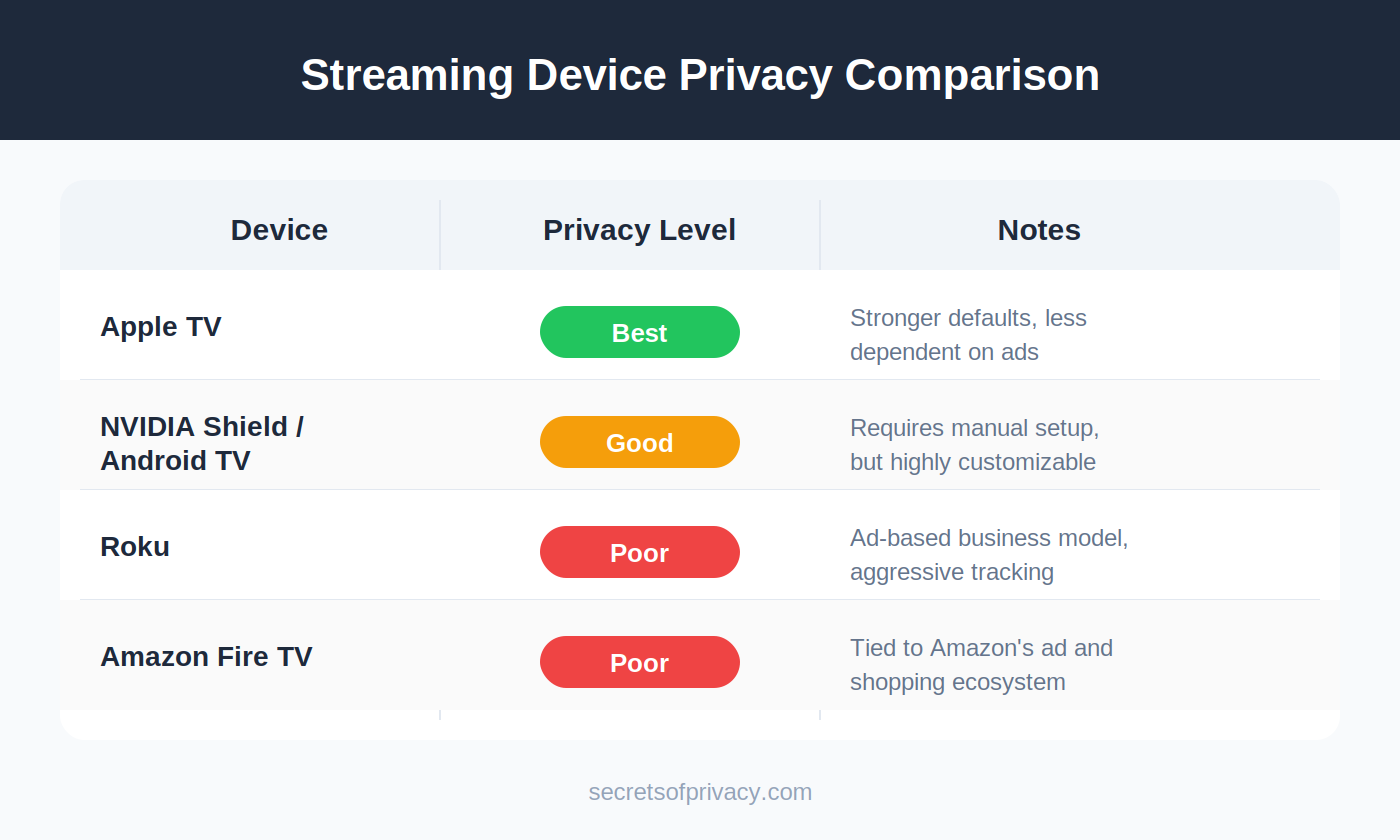
Best for stricter defaults: Apple TV
Best for configurability: NVIDIA Shield / Android TV
Most ad-heavy: Roku and Fire TV
There’s no perfect solution, and listing Apple TV as “best” is essentially grading on a curve. Each device has trade-offs, but the more you control setup and settings, the less data leaks out.
When to Consider a “Dumb TV”
For the highest privacy ROI, some people buy high-quality displays without smart features, or disable Wi-Fi on their smart TV entirely. Pair that with a streaming device you can configure, and you get picture quality without the surveillance.
This isn’t for everyone, but if you’re serious about minimizing data trails, it’s the cleanest solution.
Frequently Asked Questions
How do I know if my smart TV is tracking me?
If your TV is connected to the internet and you haven’t disabled ACR and ad tracking, it’s almost certainly collecting data. Most smart TVs have these features enabled by default. Check your TV’s privacy settings for options like “Viewing Information Services,” “Live Plus,” “Samba TV,” or “Smart TV Experience.”
Can I customize data tracking settings on my smart TV?
Yes. Every major TV brand lets you disable ACR, limit ad tracking, and turn off voice assistants. The settings are often buried in privacy or system menus. We’ve listed the exact paths for Samsung, LG, Sony, Vizio, Hisense, and TCL above.
How do smart TV operating systems compare for privacy?
All major smart TV operating systems track you by default. Samsung (Tizen), LG (webOS), and Vizio are known for aggressive data collection. Roku TV and Fire TV Edition TVs inherit the tracking of their respective platforms. Sony (Google TV/Android TV) ties into Google’s ecosystem. None are private out of the box. You will need to change settings on all of them.
What is ACR and how do I turn it off?
ACR (Automatic Content Recognition) is technology that identifies what’s playing on your screen by capturing audio or visual samples and matching them to a database. It works across all inputs, such as streaming apps, cable, gaming consoles, even DVDs. To turn it off, look for settings labeled ACR, Viewing Data, Live Plus, Samba TV, or Smart TV Experience in your TV’s privacy menu.
Does my smart TV listen to my conversations?
If voice assistant features are enabled, your TV’s microphone is listening for wake words and may capture background audio. Some manufacturers have faced criticism for sending voice recordings to cloud servers for processing. If you don’t use voice commands, disable the voice assistant and microphone entirely.
How do I stop Roku from tracking me?
Go to Settings → Privacy → Advertising → Limit Ad Tracking (turn ON). Also disable “Use Info from TV Inputs” under Settings → Privacy → Smart TV Experience. This limits—but doesn’t completely stop—Roku’s data collection, since their business model depends on advertising.
Is Apple TV better for privacy than Roku or Fire TV?
Yes. Apple’s business model is less dependent on advertising, so Apple TV has stronger privacy defaults and collects less data. Roku and Fire TV both rely heavily on ad revenue, which means more aggressive tracking. Apple TV is the best mainstream option for privacy-conscious users.
Can I block smart TV tracking at the network level?
Yes. Tools like Pi-hole or NextDNS can block known tracking domains before your TV can connect to them. You can also put your TV on a separate guest network to isolate it from your other devices. These methods don’t stop all tracking (especially encrypted traffic), but they significantly reduce background data collection.
What happens if I don’t connect my smart TV to the internet?
Your TV becomes a “dumb” display. You lose access to built-in streaming apps, voice assistants, and automatic updates, but you also eliminate most tracking. You can still stream by connecting an external device (Apple TV, Roku, Fire TV) via HDMI, just make sure to adjust privacy settings on that device too.
Do smart TV privacy settings reset after updates?
They can. Many users report that firmware updates revert privacy settings to defaults, re-enabling tracking without notification. It’s worth checking your settings after any major update, or setting a recurring reminder to audit them periodically.
Bottom Line
Smart TVs are designed to collect your data. But with the right settings, you can significantly reduce what leaves your living room.
Start with the basics:
1. Disable ACR
2. Limit ad tracking
3. Turn off voice assistants you don’t use
4. Decline “personalization” features during setup
Then layer on advanced defenses:
5. Use a streaming device you trust more than your TV
6. Put your TV on a separate network
7. Consider DNS filtering if you’re technically inclined
No single step makes you invisible, but taken together they make your household a much harder target for advertisers, data brokers, and anyone looking to build a profile on you.
Related reading:


Friendly Ask
If you found this helpful or informative, chances are your friends and family will as well. Especially those with a Smart TV. Please share it with them to help spread awareness.
Last updated January 2026
Looking for help with a privacy issue or privacy concern? Chances are we’ve covered it already or will soon. Follow us on X and LinkedIn for updates on this topic and other internet privacy related topics.
Disclaimer: None of the above is to be deemed legal advice of any kind. These are *opinions* written by a privacy and tech attorney with years of working for, with and against Big Tech and Big Data. And this post is for informational purposes only and is not intended for use in furtherance of any unlawful activity. This post may also contain affiliate links, which means that at no additional cost to you, we earn a commission if you click through and make a purchase.
Privacy freedom is more affordable than you think. We tackle the top Big Tech digital services and price out privacy friendly competitors here. The results may surprise you.
If you have an iPhone, you’ll want to check out this post:
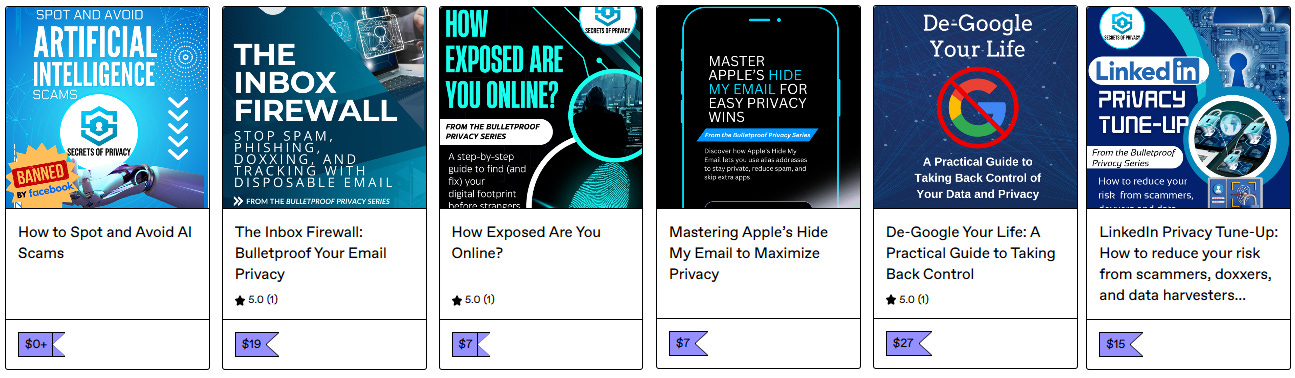
Check out our specialized privacy and security guides in our digital shop. Below is a sample of what’s available. People are really loving the De-Google your Life Guide (available here at 25% off). Browse all the guides here.

If you’re reading this but haven’t yet signed up, join for free (4,000+ subscribers strong) and get our newsletter delivered to your inbox by subscribing here 👇
Looking forward to part 2 where you talk about things like Roku, Apple TV, Firestick and more.
It's hard to buy a tv that isn't a smart tv anymore.
I've chosen to not connect them to my network. I use Apple TV and Roku streaming devices. Which is why I'm looking forward to part 2!
+