

How to Stop Email Tracking: Block Tracking Pixels in Gmail, Outlook & More
Step-by-step instructions to block tracking pixels in Gmail, Outlook, Apple Mail, and more (plus why it matters for your privacy).
Updated December 2025
Want to stop companies from tracking you when opening emails?
Here's the quick answer: disable remote image loading in your email client.
Below, we'll show you exactly how to do this in Gmail, Outlook, Apple Mail, Proton Mail, and others (click here to skip right to that section). We also explain why email tracking pixels are a bigger privacy risk than most people realize.
But first, we told the story last week of a reader who clicked on a link his wife sent him about an education service for kids (link below). She found the link on Facebook (🚩).
After clicking on the link, he got spammed by the education services company even though he never gave them his email. That was a real eye opener for a lot of readers, who were shocked that your email is that easily obtained by a company.
We mentioned email tracking pixels in that post, but didn't go into a lot of detail. Turns out a lot of you are interested in the topic because we had a few readers reach out requesting more information.
Tracking pixels are everywhere. They're also invisible and designed to watch you. So it’s wise to understand them better and how to defeat them if you want.

A Short History of Tracking Pixels
Tracking pixels started out as a simple marketing tool. In the early 2000s, email marketers wanted to know if people were opening their campaigns, so they began embedding tiny 1×1 pixel images inside emails.
Each pixel was unique to the recipient. When your email client loaded it, the sender knew you opened the message. At first, that meant nothing more than “this email was read.” If they stopped there, 99% of people probably wouldn't care.
But over time, pixels became a foundation for behavioral tracking: mapping who you are, where you are, and how you respond to messages. Today, nearly every promotional email you receive contains at least one tracking pixel.
How Tracking Pixels Actually Work
Here’s the simplified anatomy of a tracking pixel:
An email is sent in HTML format (the same language web pages use).
Hidden inside is a 1×1 image tag that looks like this:
<img src="https://example.com/pixel/abc123.png" width="1" height="1" />That URL is unique to you. When your email app requests it, the sender’s server logs:
Which recipient opened it
The exact time.
Your IP address (which points to your rough location).
What device or email app you used.
Plain-text emails don’t allow this kind of tracking. But because most email clients default to HTML view, pixels remain the norm.
Beyond Marketing: Why Pixels Are a Bigger Risk
Pixels aren’t always sinister. Newsletter writers (us included) use them to measure open rates. The problem is consent and scope.
Here’s where it gets risky:
Doxxing and profiling: Malicious senders can use pixels to confirm your location, then cross-reference it with other data.
Phishing prep: Attackers use pixels to confirm that an address is real and active before sending targeted scams.
Surveillance: Employers and political groups have used pixels to quietly monitor who’s engaging with their emails.
The bottom line is that this is more than just ads. It’s also about giving away information you didn’t agree to share.
Real-World Examples
It’s one thing to talk about tracking pixels in theory. It’s another to see how they’ve been misused in practice. From email startups to healthcare giants, pixels have been at the center of controversies, breaches, and even lawsuits. Here are a few cases that show how a seemingly harmless “invisible image” can create very real privacy risks.
Superhuman (2019): The email startup Superhuman faced public outrage when it was revealed that every message sent through its platform included a tracking pixel by default. Senders could see exactly when, how often, and where recipients opened their emails. Critics called it “creepy surveillance,” and the company was forced to change its policies.
Healthcare privacy breach (2024): Kaiser Permanente disclosed that tracking pixels embedded in its websites and mobile apps leaked personal data (including names and IP addresses of 13.4 million patients) to third parties like Google and Microsoft. Similar breaches have hit Advocate Aurora and the UK’s NHS, showing how pixels can expose some of the most sensitive categories of personal information - your health data.
Class action lawsuits (Arizona, 2023–2024): A wave of lawsuits in Arizona have targeted companies embedding “spy pixels” in their marketing emails. Brands like Patagonia, PacSun, Target, Gap, and Lowe’s are accused of using hidden pixels to track when messages were opened, recipient locations, devices, and whether emails were forwarded, all allegedly without consent. These cases highlight how pixel use can cross into potential legal violations, with fines and penalties at stake.
These examples illustrate why pixels are more than just marketing overreach. When used beyond confirming an email was opened, they're morph into a meaningful privacy invasion.
How to Block Email Tracking Pixels
The good news: blocking pixels is relatively simple. You just need to stop remote images from loading automatically. Your success and effort will depend on which email service you use. Here’s how the major email providers handle it.
Proton Mail
Blocks tracking pixels by default. Emails won’t load remote content unless you click “Load remote content.” This makes Proton Mail one of the strongest privacy-first email providers (and why it’s in our privacy stack - see here).
Gmail
Images are loaded by default. You can disable the loading of images by changing a setting. It’s easier to do this on your desktop, but it is possible to do on your mobile device if necessary.
Click the gear icon → “See all settings”
In the General tab, scroll to “Images”
Select “Ask before displaying external images”
Scroll down and click “Save Changes”


Outlook
This is another one that’s easier to do on your desktop if possible.
Go to File → Options → Trust Center
Click “Trust Center Settings”
Select “Automatic Download”
Check “Don’t download pictures automatically”
Apple Mail:
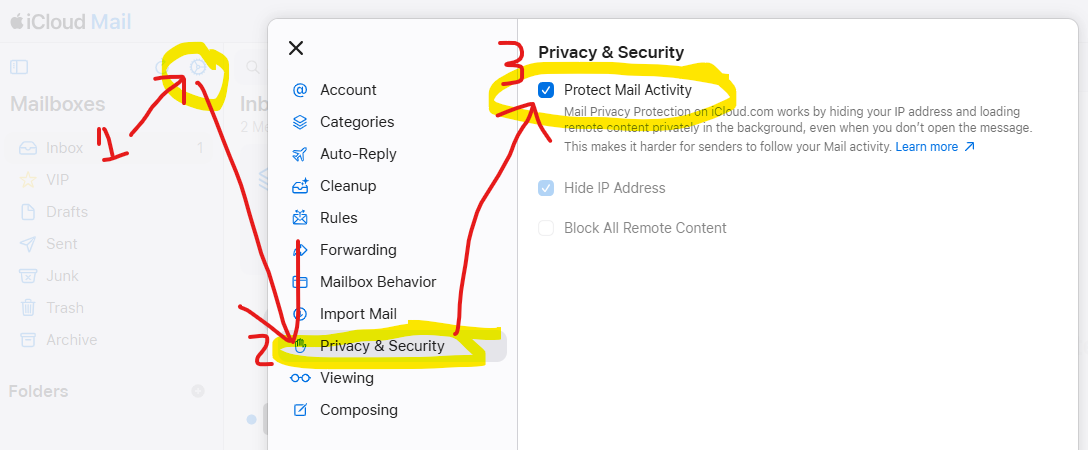
Mail Privacy Protection masks your IP and device by pre-loading pixels through Apple servers. But it still creates a “fake open,” which keeps marketers happy.
Open Mail → Settings (or Preferences)
Click the Privacy tab
Check “Protect Mail Activity”
Tuta
Tuta follows the same approach as Proton Mail - it blocks external images unless you allow them.
Fastmail
Has a “Block remote images” setting, but you need to enable it.
Blocked tracking pixels? Good. Now protect the address itself. Learn how to create disposable emails, stop spam at the source, and keep your real address hidden from marketers, data brokers, and doxxers.
Do Privacy Browsers Block Email Tracking Pixels?
Not really. Browsers like Brave, Firefox, and Safari do block web trackers when you’re visiting sites. But email tracking pixels are different.
In Gmail or Outlook on the web: The browser can’t override whether those services auto-load images. If Gmail loads a pixel, Brave won’t block it.
In Proton Mail or Tuta: The service itself blocks remote images (and pixels) by default, so even if you’re using a browser, the protection comes from the email provider.
In apps like Apple Mail or Outlook: Whether pixels are blocked depends on the app’s own settings (for example, Apple Mail’s Privacy Protection feature).
✅ Bottom line: Browsers don’t stop email tracking pixels. Use an email provider or client that blocks remote images by default if you want real protection.
How This Fits Into Your Bigger Privacy Picture
Blocking tracking pixels is one of those small changes with a high privacy ROI. It stops invisible data leaks every time you check your inbox.
But it’s also part of a larger strategy. Combine pixel blocking with:
Disposable email addresses to avoid spam and profiling (see our The Inbox Firewall guide for more on disposable email address strategies, available here).
A private email provider like Proton Mail or Tuta for stronger defaults.
Use a privacy-friendly email app on desktop: Some apps (like Thunderbird with extensions, or Canary Mail) offer more granular controls over remote content and tracking.
Run your own domain for email: Having a custom domain with a privacy-respecting provider lets you control addresses more flexibly and keeps you independent of Big Tech email ecosystems.
Pair with a VPN: Even if a pixel loads, a VPN masks your real IP address and location, reducing the value of what’s leaked.
Limit newsletter sign-ups to a secondary inbox: Keep your primary inbox lean and use a dedicated account for subscriptions and promotions. This cuts down the exposure of your main identity.
Each of these moves reduces your digital footprint. Together, they stack into meaningful privacy wins, and help you to become a harder target.
Further Reading


Frequently Asked Questions About Email Tracking
Do tracking pixels work if I don’t click anything?
Yes. You don’t need to click a link for tracking to work. Simply opening an email that loads remote images is enough to trigger the pixel. The moment your email client requests that tiny 1x1 image from the sender’s server, they know you opened the message, along with your IP address, approximate location, device type, and the time you opened it.
What information do email tracking pixels collect?
A typical tracking pixel can collect:
Whether you opened the email (and how many times)
When you opened it (exact date and time)
Your IP address (which reveals your approximate location)
Your device type (mobile, desktop, tablet)
Your email client or browser
Your operating system
More sophisticated tracking setups can also detect if you forwarded the email or how long you spent viewing it.
Do tracking pixels work in plain text emails?
No. Tracking pixels require HTML emails to function because they rely on embedded image tags. Plain text emails don’t support images, so pixels can’t load. However, almost all marketing emails and newsletters are sent in HTML format, which is why pixel tracking is so widespread.
Does using a VPN stop email tracking?
Partially. A VPN masks your real IP address, so if a tracking pixel does load, the sender sees the VPN server’s location instead of yours. However, a VPN doesn’t stop the pixel from confirming that you opened the email, when you opened it, or what device you used. For full protection, combine a VPN with an email client that blocks remote images.
What’s the difference between tracking pixels and read receipts?
Read receipts are explicit, where you typically get a prompt asking if you want to notify the sender that you’ve read their message, and you can decline. Tracking pixels are invisible and automatic. You’re never asked for consent, and most people don’t even know they exist. Both confirm that an email was opened, but tracking pixels collect far more data and operate without your knowledge.
Do tracking pixels work if I read email on my phone?
Yes. Tracking pixels work the same way on mobile devices as on desktop. In fact, mobile email apps are often less privacy-protective than desktop clients. Your phone’s email app will load remote images (and tracking pixels) unless you specifically disable this in settings. The default Mail apps on both iOS and Android load images automatically.
Does Gmail block tracking pixels?
Partially. Gmail routes images through Google’s own servers (called “proxying”), which hides your IP address from the sender. However, Gmail still loads the images by default, which means the sender knows you opened the email, they just can’t see your exact location. For stronger protection, go to Settings → General → Images and select “Ask before displaying external images.”
Friendly Ask
If you found this helpful or informative, chances are your friends and family will as well. Please share it with them to help spread awareness about email tracking pixels.
Looking for help with a privacy issue or privacy concern? Chances are we’ve covered it already or will soon. Follow us on X and LinkedIn for updates on this topic and other internet privacy related topics.
Disclaimer: None of the above is to be deemed legal advice of any kind. These are *opinions* written by a privacy and tech attorney with years of working for, with and against Big Tech and Big Data. And this post is for informational purposes only and is not intended for use in furtherance of any unlawful activity. This post may also contain affiliate links, which means that at no additional cost to you, we earn a commission if you click through and make a purchase.
Privacy freedom is more affordable than you think. We tackle the top Big Tech digital services and price out privacy friendly competitors here. The results may surprise you.
If you have an iPhone, you’ll want to check out this post:
Check out our specialized privacy and security guides in our digital shop. Below is a sample of what’s available. People are really loving the De-Google your Life Guide (available here at 25% off). Browse all the guides here.

If you’re reading this but haven’t yet signed up, join for free (4,000+ subscribers strong) and get our newsletter delivered to your inbox by subscribing here 👇
DuckDuckGo also provides an email alias/forwarding service that strips trackers.
Good write-up